Shopify batch fulfillment can now group up to 250 fulfillments into one customizable pick, print, and pack workflow. Shopify announced the feature on October 16, 2026, just as D2C teams are preparing for holiday order peaks.
The useful question is not whether a store can create the largest possible batch. It is whether a small group of compatible orders can move faster without hiding a wrong address, mixed fulfillment service, COD hold, missing barcode, or unusual package. This guide turns the new feature into a controlled seven-step pilot.
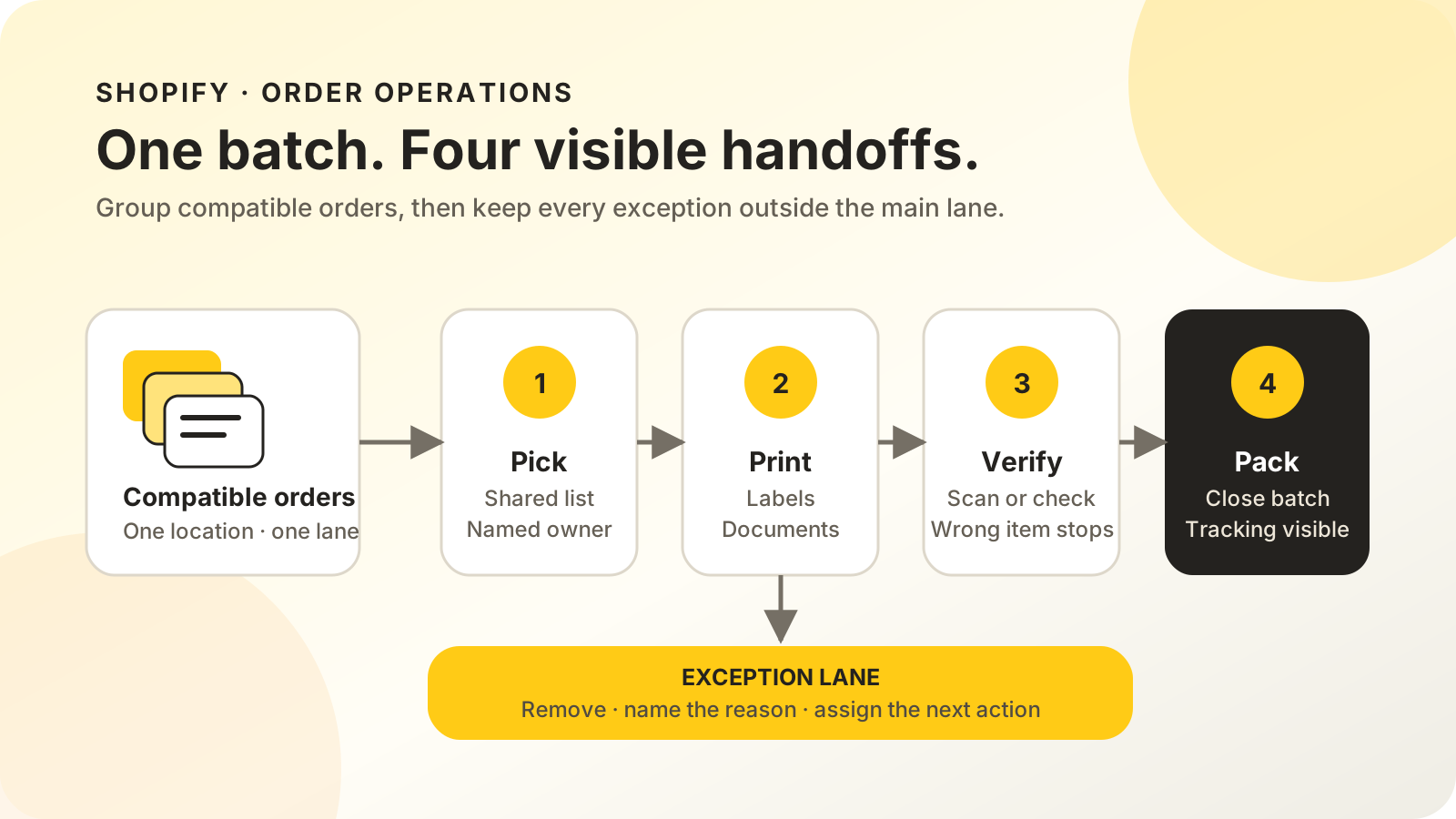
Pick, print, and pack in one workflow
On October 16, 2026, Shopify’s Fulfill orders in batches announcement introduced a native workflow for up to 250 fulfillments. It combines order grouping, pick lists, label buying, document printing, packing checks, and staff handoffs in the Orders area rather than treating each task as a separate admin action.
The default workflow has three steps. Pick creates a combined pick list. Print buys labels and prepares packing slips, shipping labels, and available customs forms. Pack uses Scan to verify, which gives a success signal for a correct item and an error signal for a wrong or extra item.
Teams can rename, add, delete, or reorder steps and actions. They can also choose which documents print and assign a staff member to each step. Shopify’s batch-fulfillment guide says workflow edits affect future batches and any current batch that has not started.
This feature sits after order approval and before carrier handoff. The Shopify Flow shipping-label checklist covers rules that buy individual labels automatically; batch fulfillment organizes the warehouse work around a selected group.
Who gets batch fulfillment, and where
Shopify’s current help page sets two eligibility conditions: the store needs an active location that the merchant manages, and that location must be in a country where Shopify admin can buy shipping labels. A location managed by a fulfillment service does not make the store eligible.
The current shipping-label requirements list five carriers for United States locations and five for United Kingdom locations. The table also lists Canada, Australia, France, Germany, Italy, the Netherlands, Poland, and Spain. India is not listed as of October 17, 2026.
That distinction changes the regional answer:
| Fulfillment setup | Native batch fit | Practical next step |
|---|---|---|
| Merchant-managed US or UK location | Eligible when Shopify label purchasing is available | Test one domestic lane |
| Merchant-managed location in another listed country | Potentially eligible | Confirm the carrier shown in the store |
| India-only fulfillment location | Not currently listed | Keep the courier or aggregator workflow |
| 3PL-managed location | Does not create eligibility | Use the 3PL’s workflow and Shopify status controls |
| Mixed in-house and 3PL operation | Partial fit | Batch only the eligible in-house fulfillments |
Do not infer eligibility from the store’s billing country or Shopify plan alone. Check the fulfillment location and whether the admin can purchase labels there. Indian brands can still improve their picking and exception process, but should not plan around a native Batch recent orders button until Shopify lists their location.
How is a batch different from bulk fulfillment and Flow?
Shopify documents three separate mechanisms. Bulk actions change the status or location of several fulfillments. Flow can trigger actions from defined conditions. Batch fulfillment moves selected orders through a shared human-and-system workflow. Picking the wrong mechanism can produce a fast status change without a reliable warehouse process.
| Mechanism | Best use | What it does not solve alone |
|---|---|---|
| Bulk fulfillment | Mark several orders in progress, on hold, fulfilled, or change location | Pick lists, document sequence, scan checks |
| Shopify Flow | Trigger a defined action when conditions match | Physical picking, packing, and staff handoffs |
| Batch fulfillment | Coordinate pick, print, pack, documents, and verification | Order approval rules or unsupported carrier connections |
Shopify’s bulk-fulfillment guide explicitly directs merchants to batch fulfillment when they need packing lists, label purchasing, and document printing. A sensible architecture can use all three: Flow or a human clears an order, a batch coordinates warehouse execution, and bulk actions handle a narrow status correction.
For COD stores, confirmation should remain upstream. The RTO cost guide explains why a booked order and a dispatch-ready order are not the same operational state.
A seven-step peak-season pilot
Shopify can automatically batch the 250 most recent unfulfilled orders from the last 14 days, but a first pilot should be much smaller. The objective is to prove the route, documents, label settings, scan behavior, and exception ownership before peak volume makes each defect more expensive.
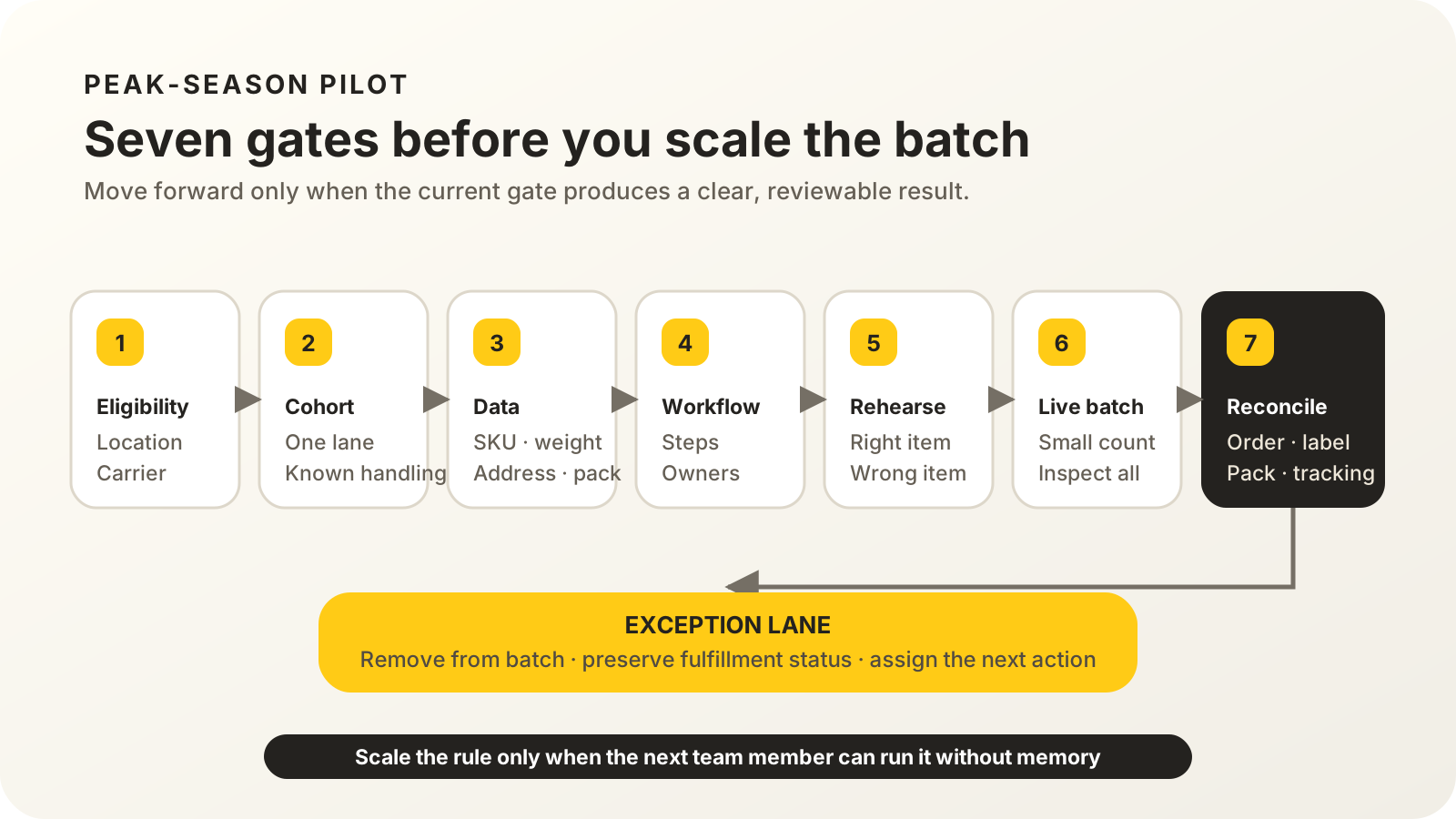
1. Confirm location and carrier eligibility
Open Shopify’s shipping-label page for the location that will fulfill the orders. Confirm that the carrier and service are available before designing a workflow around label purchase. If labels are bought elsewhere, native batches are not the right control surface for that lane.
2. Define one compatible order cohort
Choose orders with a shared operating path: one location, domestic destination, known package type, and similar product handling. Exclude personalization, fragile packs, international documentation, 3PL items, address holds, and COD orders that have not passed confirmation.
3. Clean product and shipment data
Shopify says label costs use the origin, destination, package dimensions, and combined product-plus-package weight. Confirm SKUs, variants, barcodes, weights, addresses, and package choices. Bad source data can move through a batch quickly while remaining wrong.
4. Design the minimum workflow
Keep Pick, Print, and Pack for the first run. Add only a step with a named decision, such as COD cleared or quality checked. Assign a person to each step and define what must be true before the whole group moves forward.
5. Rehearse with scanning and manual fallback
The Shopify batch guide says Scan to verify works with product barcodes and a compatible scanner. Without a scanner or barcode, staff can adjust quantities manually. Test a correct item, a wrong item, and an extra scan before the live run.
6. Run a small live batch
Start with a count your team can inspect order by order. Confirm the pick list, service, price, documents, customer notification timing, and final packed contents. Keep one person responsible for removing any order whose facts no longer match the cohort.
7. Reconcile the batch before scaling
Match every completed fulfillment with its label, documents, packed items, and tracking state. Record exceptions by cause. Scale only when the next batch can reuse the same rules without depending on the pilot owner’s memory.
The success metric is not “250 orders processed.” It is “every eligible order reached the correct final state, and every ineligible order stayed visible.” That is the difference between throughput and controlled throughput.
Which exceptions should stay outside the batch?
One exception can change the handling logic for an entire order, so remove it before a shared action runs. Shopify lets staff move an order back a step, move it to another batch, or remove it without changing its fulfillment status. Use that flexibility instead of forcing every order through the main lane.
Keep these groups outside the first pilot:
- Orders waiting for COD confirmation, fraud review, or an address response.
- Split fulfillments or items assigned to a third-party service.
- Orders with uncertain product or package weights.
- International shipments missing customs details.
- Personalised, fragile, high-value, or temperature-sensitive items.
- Preorders and backorders that are not physically ready.
Peak-season pressure makes a visible exception queue more valuable, not less. Pair the batch design with the 2026 holiday shipping deadline playbook, then use the D2C profit calculator to keep handling, shipping, returns, and advertising costs in one order-level view.
Scaling the pilot
With the exception lane kept visible, batch fulfillment can turn separate picking, document, label, and packing tasks into one shared process. Begin with an eligible location, one compatible cohort, reliable source data, and a small live batch; keep exceptions out, reconcile every result, and expand only when the workflow works without heroics.
Map the exception lane before peak volume
MlabsGrowth can map your approval, picking, label, packing, COD, and courier handoffs, then define the smallest order-operations pilot worth running.
Explore the order-operations service or review all MlabsGrowth services.
Frequently asked questions
What is Shopify batch fulfillment?
Shopify batch fulfillment is a native workflow for grouping up to 250 fulfillments, then moving them through customizable steps. The default workflow creates a pick list, buys and prints labels and documents, and uses scanning or manual quantity checks before packing is completed.
Is batch fulfillment the same as bulk fulfillment?
No. Bulk actions change the status or location of several fulfillments. Batch fulfillment organizes the work itself, including pick lists, labels, documents, staff assignments, and scan checks. Use bulk actions for status changes and batches for a controlled pick, print, and pack process.
Can one batch handle more than 250 orders?
One batch can contain up to 250 fulfillments. The automatic recent-order option covers the 250 most recent unfulfilled orders from the last 14 days. Older orders can still be selected manually or added to an existing batch. Split larger queues into clearly named batches.
Is Shopify batch fulfillment available in India?
Not for an India-only fulfillment location under the current eligibility rules. The feature requires a merchant-managed location where labels can be bought in Shopify admin. Shopify lists the United States and United Kingdom, but not India, in its current carrier table.
Source notes
- Shopify Changelog, Fulfill orders in batches, published 2026-10-16, retrieved 2026-10-17.
- Shopify Help Center, Fulfilling your orders in batches, retrieved 2026-10-17.
- Shopify Help Center, Requirements and considerations for buying shipping labels, retrieved 2026-10-17.
- Shopify Help Center, Fulfilling your own orders in bulk, retrieved 2026-10-17.
- Shopify Help Center, Buy and print shipping labels in bulk, retrieved 2026-10-17.
