Shopify Flow can now buy shipping labels as eligible orders become ready to fulfill. The October 15, 2026 release removes a repetitive admin step, but it also moves a paid shipping decision into an automated workflow. The right launch is a narrow rule, verified shipment data, and a clear exception queue.
This guide explains the new action, its limits, and a six-step rollout for D2C operations teams. It is most useful for stores that already buy labels through Shopify. If your operation uses a 3PL, an Indian courier aggregator, or several fulfillment paths, use the eligibility section before building anything.
Before you turn it on
- Shopify released the Purchase shipping label Flow action on October 15, 2026.
- One action buys one label for one eligible fulfillment.
- Third-party fulfillment orders are not supported by this action.
- Test logic first, then run a small live pilot and monitor every result.
The new Purchase shipping label action
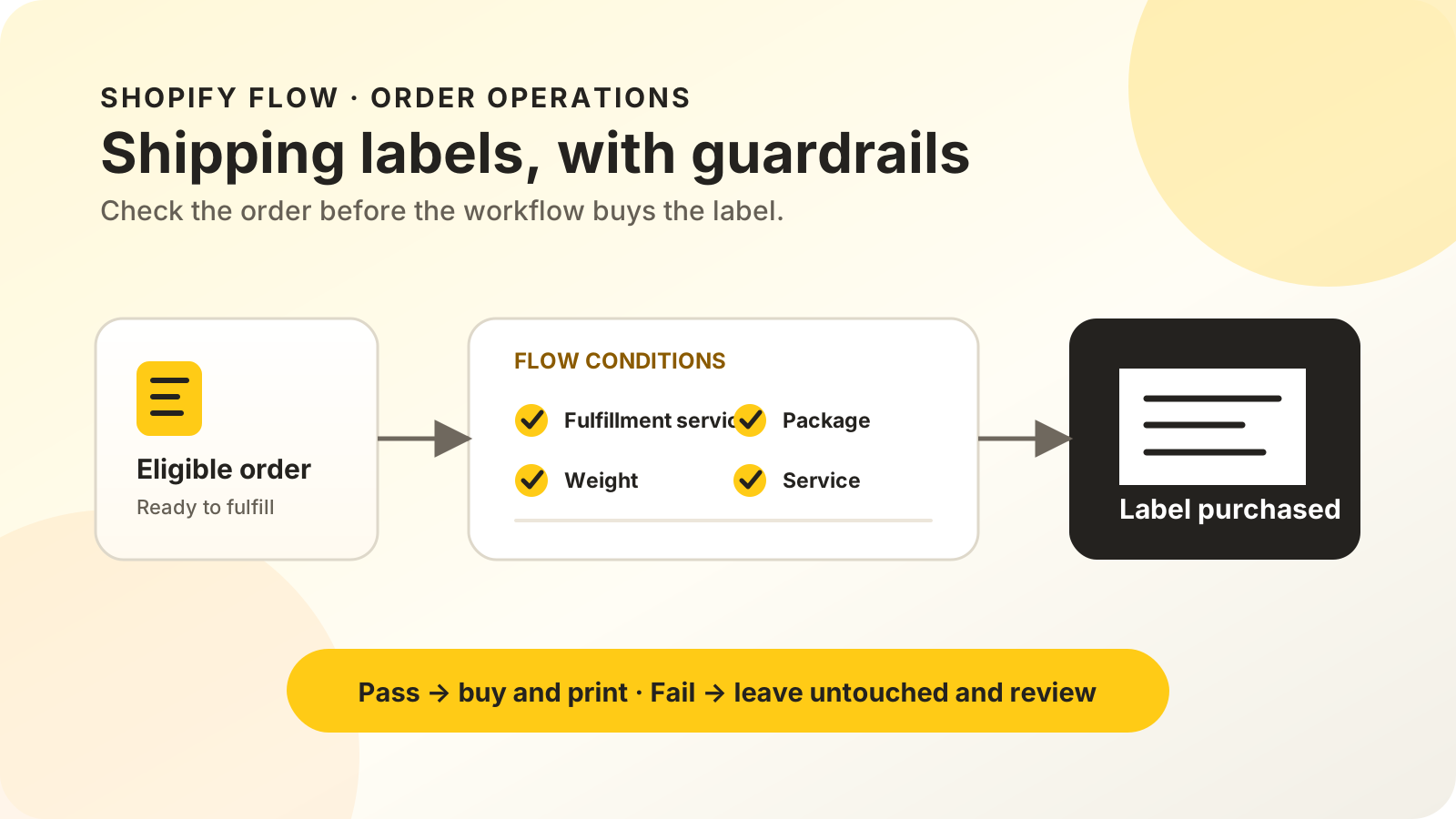
On October 15, 2026, Shopify’s Buy shipping labels automatically with Shopify Flow announcement added a native label-purchase action. Merchants can set conditions, choose a carrier and service, package, weight, and ship date, then leave unmatched orders untouched.
The Purchase shipping label action buys one label for one fulfillment order. A workflow can use the fulfillment order’s assigned location, service, destination, products, tags, or other available attributes to decide which path runs. Labels that are purchased successfully appear on the Shipping labels page, ready to print. This is different from drafting a label or tagging an order for a person to review. The action creates a charge through Shopify and commits the selected shipment settings. Treat it as a controlled purchasing workflow, not a convenience toggle.
For the wider operating model, see how reviewable ecommerce automations use conditions, actions, and human approval gates.
Who can use Shopify Flow shipping labels?
Shopify Flow is available on four plan families: Basic, Grow, Advanced, and Plus. The label action still depends on an eligible fulfillment location, supported Shopify carrier service, accurate shipment data, and a fulfillment order handled directly through Shopify.
Shopify’s current carrier-account list includes five carriers for US fulfillment locations and five for UK locations. It also lists native options for Canada, Australia, France, Germany, Italy, the Netherlands, Poland, and Spain. The exact services shown depend on origin, destination, package weight, and location.
India is an important exception.
Flow itself is available, but India does not appear in Shopify’s current native carrier-account label table. That means an Indian D2C brand should not assume this new action replaces Shiprocket, another courier aggregator, or a custom carrier connection. Confirm what appears in the store’s own shipping-label interface.
| Store setup | Native action fit | Recommended path |
|---|---|---|
| Direct Shopify fulfillment with a supported carrier | Good candidate | Pilot one predictable lane |
| Shopify fulfillment plus a 3PL | Partial fit | Filter by assigned service or location |
| All orders assigned to a 3PL | Not supported by this action | Keep the 3PL label workflow |
| India-based courier workflow | Native support not listed | Verify the admin; keep the current courier connection |
| International orders with duties | Conditional | Verify carrier, customs data, and DDP support |
A six-gate launch plan
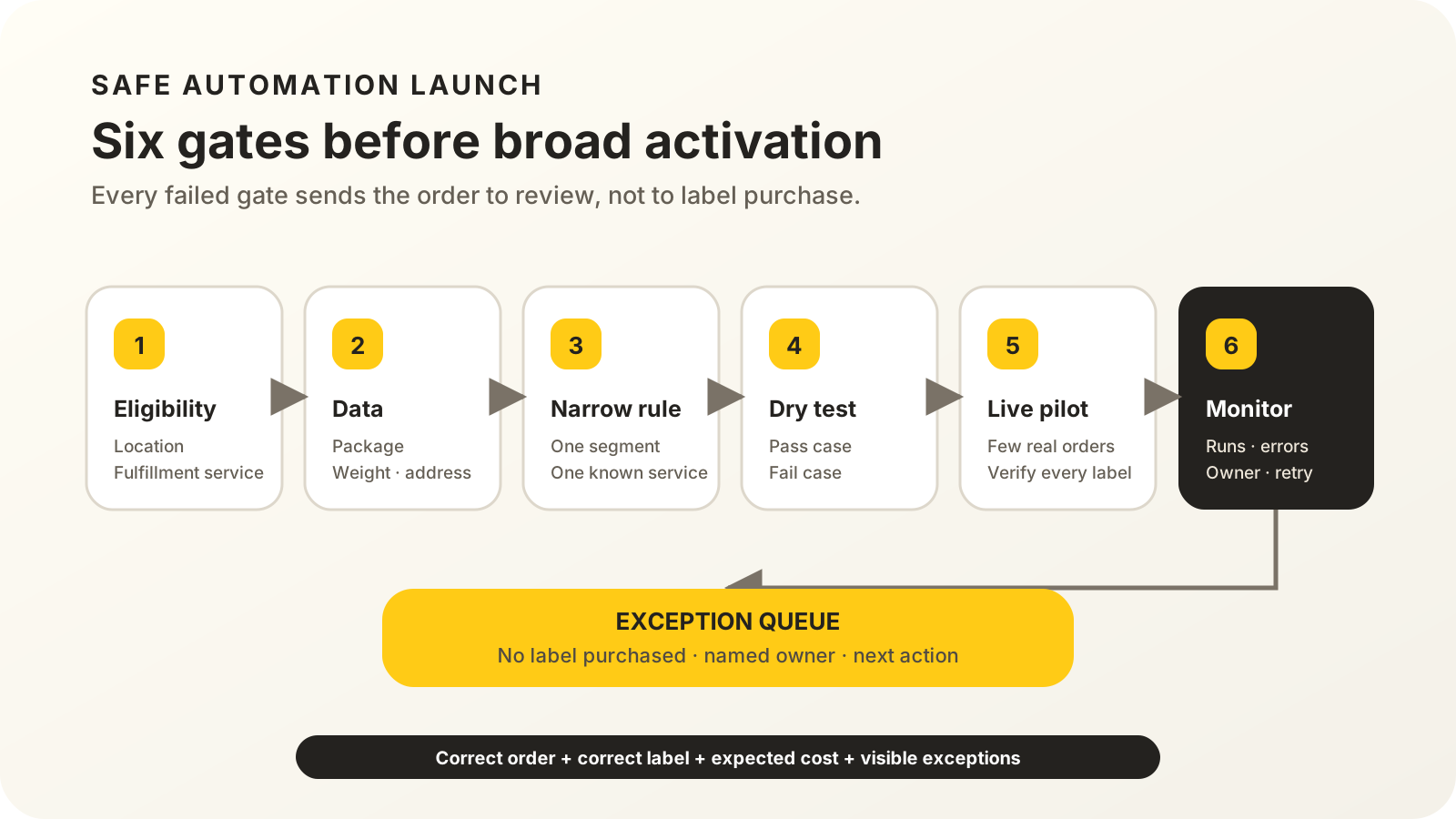
Use six gates before broad activation. Shopify provides one action per fulfillment, three non-destructive test-event methods, and workflow-run logs after activation. Together, those controls support a staged rollout rather than a store-wide switch.
1. Confirm the fulfillment path
List the locations and services that actually buy labels through Shopify. The action will not run for an order assigned to a third-party fulfillment service, even when the fulfillment order is otherwise valid.
For a mixed operation, add a condition that checks assigned location or fulfillment service. The passing branch can purchase a label. The other branch should tag the order or notify the operations owner without buying anything. Teams that pick and pack in waves can pair this with a Shopify batch fulfillment pilot.
2. Fix package and weight inputs
Shopify lets the action use assigned line-item weights or one custom weight. It can use product-assigned packaging, another saved package, or a recommended package when none is set. Those defaults are operational decisions, not harmless display values.
Shopify’s packaging and weights guide notes that carriers commonly charge by size and weight. Measure the outside dimensions, include packaging weight, and test bundles or multi-item orders separately. A fast workflow with poor inputs only buys the wrong label faster.
3. Build the smallest useful rule
Start with one predictable segment. A single-item order, one saved package, one fulfillment location, and one domestic service create a clearer pilot than a rule that covers every order. The October announcement says conditions can use tags, products, single-item status, or combinations of order attributes. Use an explicit eligibility tag if another process must finish first. For example, a COD order can remain outside the label workflow until the store’s approved confirmation process marks it ready.
This sequencing matters because a booked order is not always ready to ship. The RTO cost guide explains why COD and prepaid failures should be measured separately before changing dispatch rules.
4. Test both the pass and fail paths
Shopify Flow offers three ways to supply test-event data: record a real event, create a simulated event from store data, or have Sidekick generate simulated events. The workflow testing guide says tests stop before an action changes live store data.
Create at least two cases. One should qualify and reach the purchase step. One should fail a condition and exit without a label. Add edge cases for missing weight, a different location, a multi-item order, and a third-party fulfillment assignment. The test preview should make the chosen branch and variables obvious.
5. Run a small live pilot
A logic test does not buy a label, so it cannot verify the final charge, service, printable file, or customer-notification timing. Activate the workflow for a tightly limited set of real orders and compare every result with the order record.
Check the origin, destination, service, package, total weight, ship date, price, and notification setting. Shopify’s shipping-label overview also recommends an eligible location, accurate shipment details, and a supported printer before labels are purchased.
6. Monitor runs and own exceptions
Shopify keeps completed Flow runs for 14 days. The workflow monitoring guide lets teams filter runs by errors, actions taken, trigger type, retries, time, and raw event text such as an order ID.
Review the pilot daily. A completed run should match a label on the Shipping labels page. An error should have one owner, a documented cause, and a decision to fix, retry, or process the order manually. Shopify also supports a Workflow error occurred trigger for targeted notifications.
The success metric is not “workflow completed.” It is “the correct label was purchased for the correct fulfillment at the expected cost, while every excluded order remained visible to a person.”
Which settings deserve the most attention?
The purchase action exposes four shipment choices plus customer-notification timing. Each can create a cost or experience problem when it is applied too broadly, so every field needs an owner and a verification method.
| Setting | Safer starting choice | Verify after purchase |
|---|---|---|
| Shipping service | One known domestic service | Service and charge match the rule |
| Package | One measured saved package | Dimensions match the packed order |
| Total weight | Assigned item weights for a stable SKU set | Packed weight stays within tolerance |
| Ship date | The actual dispatch schedule | Label timing matches carrier rules |
| Buyer notification | Match warehouse handoff timing | Tracking is not sent before dispatch is real |
The action also offers a cheapest-service option. Use it only when the eligible services meet the same delivery promise and handling requirements. The lowest label price is not automatically the lowest delivered cost if it creates a missed cutoff, a slower promise, or more support contacts.
To protect unit economics, compare the final label and failure costs in the website and D2C profit calculator. For peak-season timing, pair the workflow with the 2026 holiday shipping deadline playbook.
Where to start
Launched through the six gates above, Flow can remove a repetitive purchase step from a stable fulfillment lane without hiding the orders that need judgement. Start with eligible Shopify-fulfilled orders, trustworthy package data, one narrow rule, and two test paths, then verify a small live pilot and give every exception an owner.
Map the exceptions before you automate the purchase
MlabsGrowth can map the Shopify, courier, COD, and human-review handoffs in your current order process, then define the smallest safe automation scope.
See how we automate order operations or browse all MlabsGrowth services.
Frequently asked questions
Can Shopify Flow buy shipping labels automatically?
Yes. The Purchase shipping label action was released on October 15, 2026. It can select the service, package, weight, ship date, and notification timing for an eligible fulfillment order.
Does the action work with a 3PL?
Not for orders assigned to a third-party fulfillment service. Mixed operations should filter by location or fulfillment service and keep a separate path for the 3PL.
Can it buy several labels at once?
One action buys one label for one fulfillment. Shopify says bulk automation needs a For each action that loops through fulfillment orders.
Is Shopify Flow free?
Shopify describes Flow as a free app available on Basic, Grow, Advanced, and Plus plans. Stores still pay for labels, and Flow usage limits follow the store plan’s API limits.
What if a live run fails?
Open the run details, correct the workflow or source data, then decide whether to retry. Shopify supports manual retries after the original issue has been fixed.
Source notes
- Shopify Changelog, Buy shipping labels automatically with Shopify Flow, published 2026-10-15, retrieved 2026-10-16.
- Shopify Help Center, Purchase shipping label, retrieved 2026-10-16.
- Shopify Help Center, Shopify Flow, retrieved 2026-10-16.
- Shopify Help Center, Testing a workflow in Shopify Flow, retrieved 2026-10-16.
- Shopify Help Center, Finding and monitoring workflow runs, retrieved 2026-10-16.
- Shopify Help Center, Shipping labels in Shopify, retrieved 2026-10-16.
- Shopify Help Center, Buying shipping labels individually, retrieved 2026-10-16.
- Shopify Help Center, Understanding shipment packaging and weights, retrieved 2026-10-16.
