A Shopify stock count should compare shelf quantities with recorded on-hand inventory, isolate meaningful variances, and update stock only after review. Shopify now supports that controlled workflow in the admin, so teams can replace a spreadsheet overwrite with a traceable count, review, and approval process.
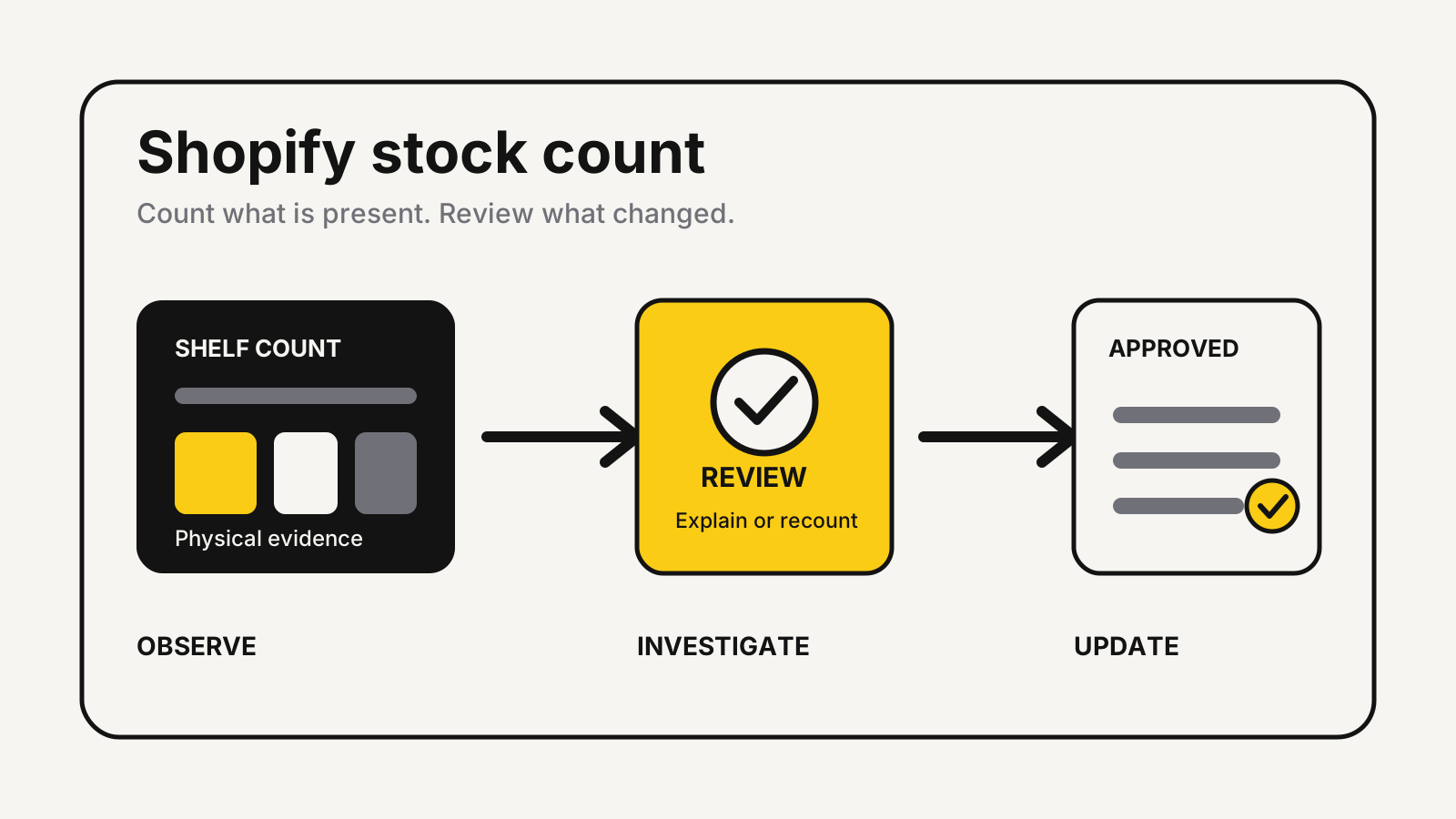
The feature is new, but the operating question is familiar: when physical stock and Shopify disagree, which number should you trust? The answer is neither by default. Freeze the scope, count what is present, investigate the gap, and approve only the lines you can defend.
What changed in Shopify stock counts?
Shopify announced admin-managed stock counts on October 20, 2026. Its release note on creating, managing, and reviewing stock counts says merchants can schedule a count, add products by search or barcode, let several staff contribute, review variances, and control who can count or approve.
The important change is the review gate. A physical count no longer has to become an immediate inventory adjustment. Staff can record what they see, while a manager compares expected and counted quantities before stock changes.
Shopify’s stock-count overview also separates the admin workflow from Shopify POS. Counts can be created and performed in the Shopify admin; performing them in the POS app requires Shopify POS Pro at that location.
That makes the feature useful beyond a retail shop. An ecommerce team can count a warehouse aisle from the admin, while a POS Pro store can send the same count to staff using the POS app.
Choose a narrow count before touching inventory
Start with one location and a defined group of variants. Shopify’s instructions for creating stock counts state that each count covers one location, bundle products aren’t supported, and duplicate barcodes must be resolved before scanning.
A useful count brief names:
- the physical location and zone;
- the included variants;
- the planned counting window;
- pending receipts, transfers, returns, and open orders;
- the person who can approve changes;
- the reason for selecting this scope.
Choose scope by risk, not convenience. Fast movers, low-stock items, high-value products, and variants with recent receiving problems deserve attention before slow, stable stock. If the larger problem is deciding when to buy again, use the inventory reorder point guide and inventory planning calculator after the count is clean.
Do not mix locations. A positive variance in one warehouse and a negative variance in another may be an unrecorded transfer, not a gain and a loss.
The Shopify stock count workflow
Treat the process as a controlled handoff from plan to evidence. Shopify records each entered quantity and attributes it to the staff member who entered it. Several people can contribute to the same count without replacing one another’s work, according to Shopify’s performing and reviewing stock counts instructions.
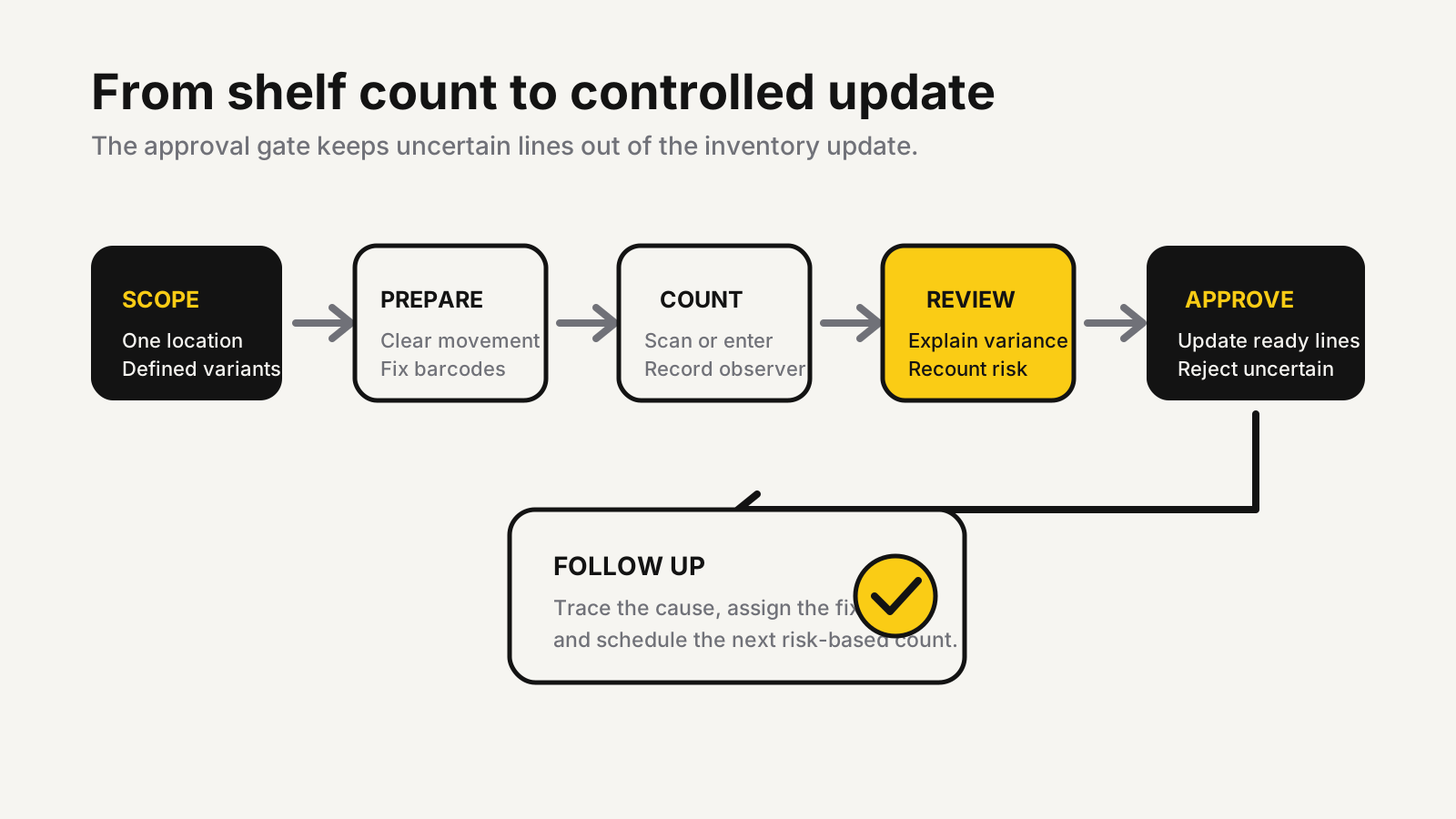
Use these handoffs:
- Scope: create the count on a desktop browser, select the location, add the variants, and note the counting window.
- Prepare: finish known receipts and transfers, sync sales activity, charge devices, and fix unreadable or duplicate barcodes.
- Count: scan each unit or enter the observed total. Keep one physical zone with one counter at a time.
- Review: compare expected and counted quantities. Separate explainable timing differences from unexplained loss or process errors.
- Approve: reject lines that need a recount. Approve only the rest.
- Follow up: inspect adjustment history, fix the process that caused the mismatch, and schedule the next targeted count.
The distinction between Complete count and Request review matters. Shopify warns that completing a count updates inventory immediately and can’t be undone. Use the review path whenever the counter should not also be the final approver.
Measure the variance before you approve it
In an illustrative comparison, four missing units are serious when Shopify expected eight, but may be immaterial when it expected several hundred. A raw unit difference lacks context, so use both unit variance and percentage variance to decide which lines need investigation.
The following is an illustrative review method, not an accounting standard:
Unit variance = counted quantity - expected quantity

Variance rate = absolute unit variance / expected quantity x 100
Illustrative example: Shopify shows 48 units expected and the shelf count finds 44. The illustrative unit variance is -4, and the illustrative variance rate is 8.3%: 4 / 48 x 100.
| Illustrative check | Illustrative result | Decision |
|---|---|---|
| Expected quantity | 48 units | Compare with the physical count |
| Counted quantity | 44 units | Check the shelf and nearby zones |
| Unit variance | -4 units | Trace likely movement or loss |
| Variance rate | 8.3% | Recount before approval |
Shopify’s inventory-count planning guidance recommends physically recounting a variant when the variance is greater than 5%. That threshold is a practical review rule, not a universal accounting policy. A high-value item may justify review at a smaller percentage.
Diagnose the cause, not just the quantity
Before approving a mismatch, ask which event could explain it. Common paths include an unreceived shipment, a return placed back on the shelf but not restocked, a transfer sent to the wrong location, damage, theft, a duplicate scan, or an app changing inventory.
Shopify’s inventory adjustment history documentation says the product or variant view shows who or what made a change, when it happened, and how on-hand, available, committed, unavailable, and incoming inventory moved. The product-level history covers the latest 180 days; older analysis can use the Inventory adjustment changes report.
This is where the count becomes useful. If the same SKU is repeatedly short after receiving, fix receiving. If positive and negative differences mirror across locations, inspect transfers. If an app appears in the change history, verify its rules before blaming the counter.
The Shopify purchase order reports guide helps trace ordered, transferred, accepted, rejected, and outstanding stock. Clean receiving records first; otherwise, the count corrects the symptom while the source error stays active.
Build a repeatable control after approval
Approval should close one count and open one improvement task. Record the cause where known, assign the process fix, and choose the next count based on risk. A count with no follow-up simply resets the number until the same error happens again.
Use a simple decision rule:
- approve matched or explained lines;
- recount material unexplained variances;
- reject uncertain lines from the approval batch;
- investigate repeat variances by SKU, location, staff workflow, app, or adjustment reason;
- update replenishment decisions only after on-hand data is credible.
Teams operating across the US, UK, EU, Canada, Australia, India, the Middle East, and Southeast Asia can use the same control logic. Local accounting, tax, audit, and shrink-reporting requirements differ, so keep the Shopify count record alongside the documents your local adviser requires.
Turn stock variances into owned operations fixes
MlabsGrowth can map your count, receiving, transfer, and exception handoffs so inventory changes have a clear owner and review gate.
Build a controlled order operations workflow or browse all MlabsGrowth services.
Sources
- Shopify Changelog, Create, manage and review stock counts in Shopify admin, published October 20, 2026; retrieved October 21, 2026.
- Shopify Help Center, Stock counts, retrieved October 21, 2026.
- Shopify Help Center, Creating and managing stock counts, retrieved October 21, 2026.
- Shopify Help Center, Performing and reviewing stock counts, retrieved October 21, 2026.
- Shopify Help Center, Planning an inventory count with Shopify POS, retrieved October 21, 2026.
- Shopify Help Center, Viewing inventory adjustment history, retrieved October 21, 2026.
