Shopify Canvas can shorten the distance between a design idea and working theme code. Release discipline still matters: use a supported draft, define one bounded change, test the buying journey, record approval, publish deliberately, and keep a verified rollback point.
Shopify introduced Canvas on October 1, 2026. The early-access feature is limited to certain stores, and its restrictions affect third-party themes, app blocks, translations, Markets, theme downloads, and future updates. This checklist complements MlabsGrowth services spanning Shopify conversion, order operations, and reviewable AI workflows.
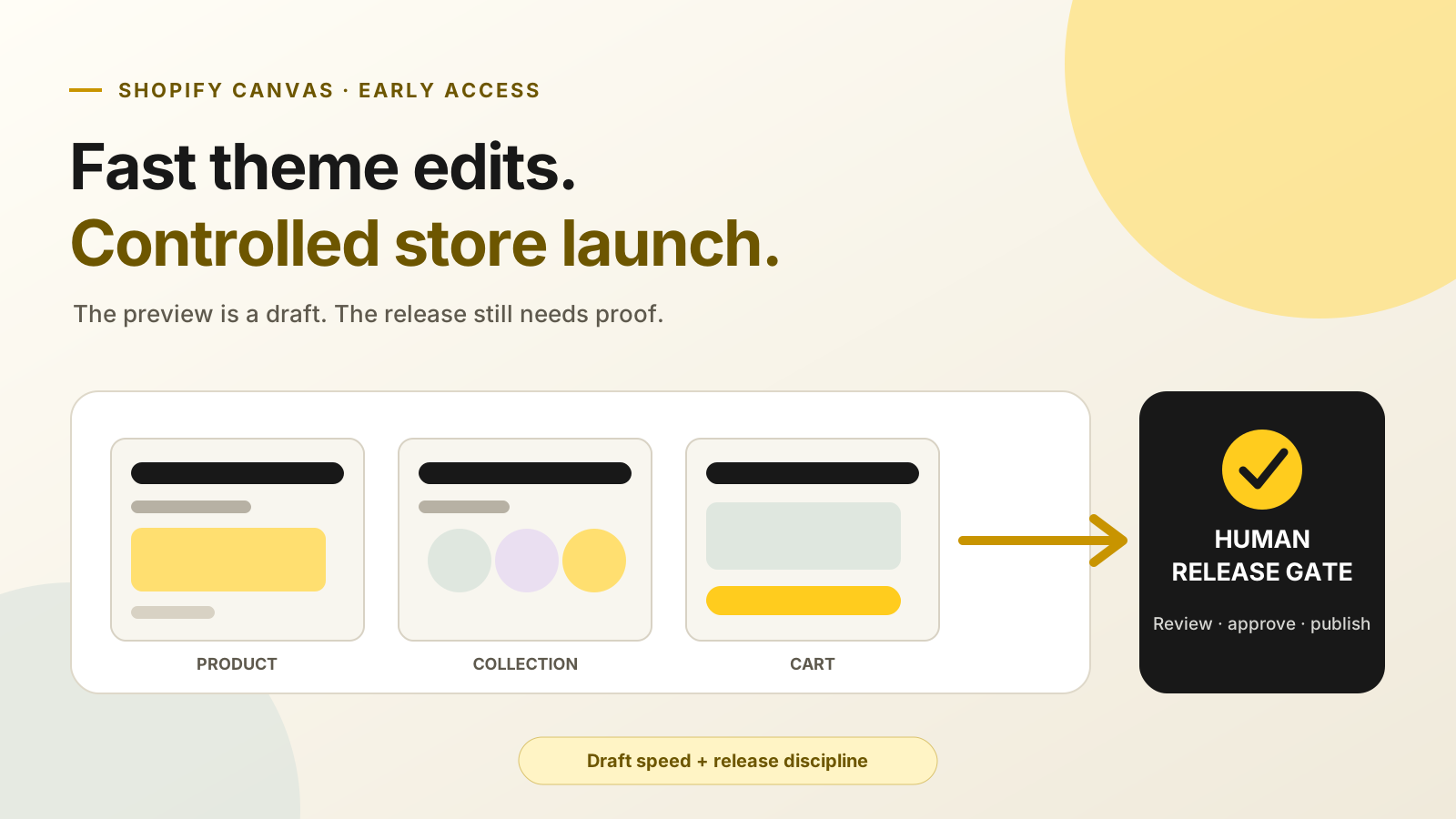
What you need to know: Canvas is early access, desktop-only, and limited to eligible stores. Shopify-developed and custom themes are supported; third-party Theme Store themes are not. Test apps, localization, mobile behavior, accessibility, speed, checkout, and analytics outside the visual preview. Automatic saving is not publication. A person still owns approval, launch, and rollback.
The new Canvas workspace, explained
Canvas puts templates in one workspace, supports direct element editing, and can ask Sidekick to modify theme files. Shopify’s launch announcement reports more than 25 million Sidekick theme edits in the first half of 2026. That indicates adoption, not a guaranteed commercial benefit. Give the tool one measurable customer outcome and state what must remain unchanged. Our Shopify Sidekick guide explains the wider boundary.
Can your store use Shopify Canvas?
Shopify’s Canvas requirements specify desktop use, a plan with theme customization, and Online store > Themes > Edit code permission. Shopify-developed and custom themes qualify; third-party themes do not. Edited themes lose updates and cannot be downloaded.
| Readiness question | Proceed when | Stop or use another workflow when |
|---|---|---|
| Is the theme supported? | It is Shopify-developed or custom | It is a third-party Theme Store theme |
| Can permissions stay controlled? | Named editors have Edit code access | Approval ownership is unclear |
| Does the change depend on apps? | Existing behavior can be tested separately | The task requires adding or configuring app blocks or embeds |
| Does the store use localization? | Translate & Adapt has a separate QA pass | The team expects Canvas to translate content or customize Markets |
| Is theme portability required? | Shopify theme history is sufficient | Policy requires downloadable edited theme files |
| Are rollouts active? | The release owner has checked their status | Publishing could remove planned theme changes |
Duplicated themes do not sync. Name one source of truth before quality assurance starts.
Eight checks before you publish
Test a connected buying journey, not attractive screenshots. Shopify’s Canvas navigation guide provides desktop, tablet, mobile, and custom preview widths.
1. Confirm access, theme source, and permissions
Verify Canvas access, plan support, theme source, and editor permission. Record the live theme before creating a draft.
2. Define one customer problem
Start with a buying question, not a visual trend. For example: “Show the delivery date before add to cart without moving price or variants.” For apparel and other fitted products, the Shopify size chart decision framework shows how to connect measurement data, regional labels, and variant selection. The Shopify conversion audit checklist helps define the test.
3. Review every affected template
Inspect every template touched by shared settings or blocks. Include variants, sale and out-of-stock states, plus any revenue-critical bundle or subscription.
Collection controls deserve their own pass: the Shopify filters diagnostic guide separates theme settings, catalog values, platform limits, indexing, markets, and code conflicts before anyone rewrites the theme.
4. Test apps and localization outside Canvas
Canvas cannot configure app blocks or embeds. Test reviews, subscriptions, bundles, consent, chat, country selectors, and analytics in preview. Review translations, currencies, regional offers, and long labels separately.
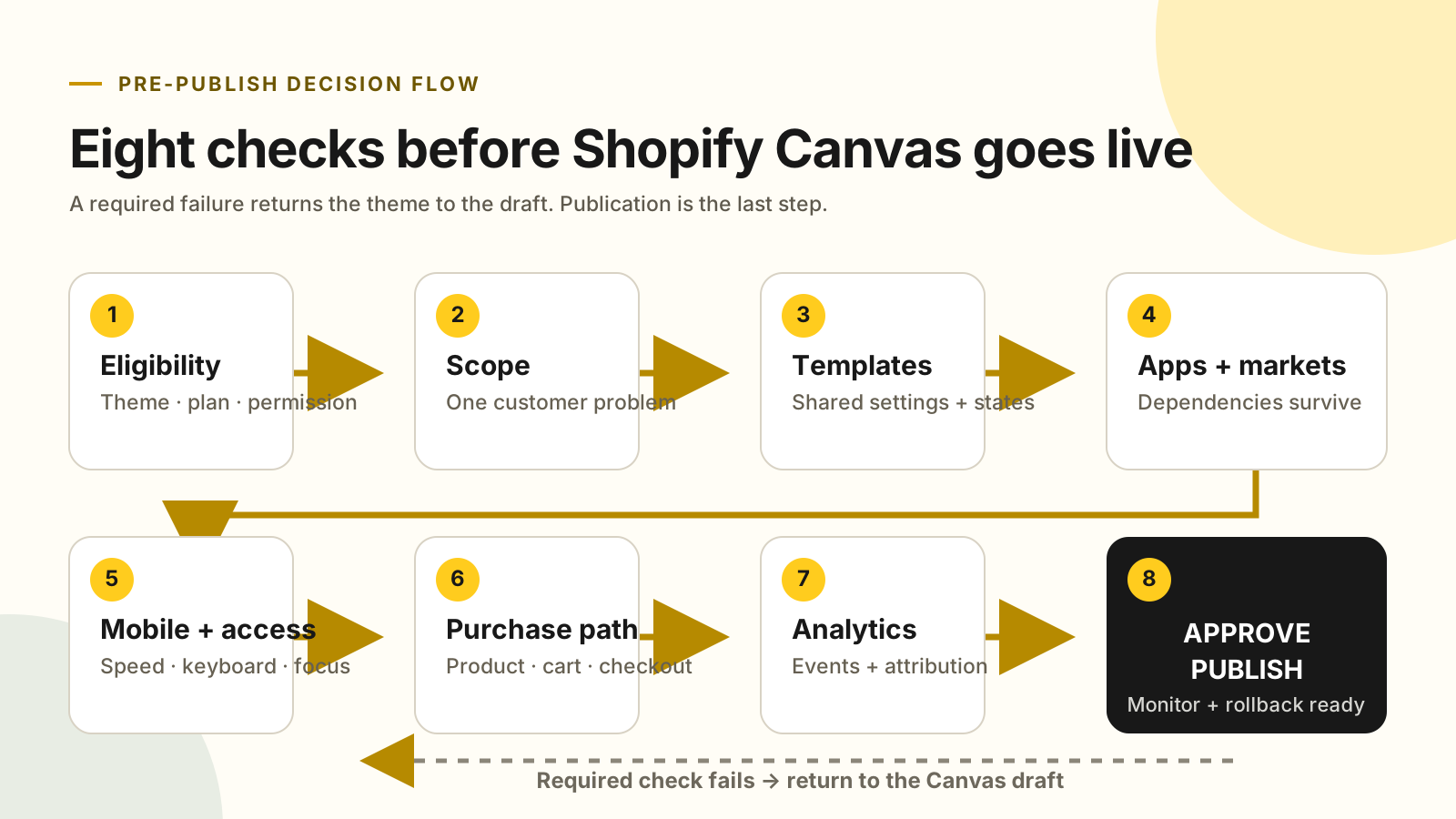
5. Check mobile speed and accessibility
Shopify’s theme performance guidance identifies Largest Contentful Paint, Cumulative Layout Shift, and Interaction to Next Paint as Core Web Vitals. It recommends eager loading the main above-the-fold image, using high fetch priority for it, and avoiding animations that delay its appearance.
Run the same lab test on the live theme and Canvas draft. Use a real phone for menus, search, variants, sticky controls, drawers, and cart.
Shopify’s accessibility guidance recommends keyboard access, visible focus, descriptive alt text, labelled controls, logical headings, and adequate contrast. Tab through the full purchase path and close drawers with the keyboard.
6. Complete the purchase path
Move from landing page to product, cart, and checkout entry. Try an invalid discount, unavailable variant, and cart update. Confirm totals, stock states, errors, and next steps. Our cart abandonment guide covers the friction worth protecting.
7. Verify analytics before reading conversion
A redesign can change customer behavior and measurement at the same time. Confirm page views, product views, add-to-cart events, checkout starts, and purchases reach the expected tools where consent permits. Preserve campaign parameters through navigation.
Record a baseline before publication. The Shopify real-time analytics guide explains launch-day monitoring. Treat live data as a smoke test, then assess mature orders and profit.
8. Record approval and rollback evidence
The editor should not be the only reviewer. Record the approved version, affected templates, test results, known limits, publisher, monitor, and rollback owner.
How should you publish and prepare a rollback?
Publish only the reviewed version. Shopify’s Canvas customization guide says edits save automatically but remain invisible to customers until publication. An unpublished theme uses Publish; a live theme with saved work uses Update and then Publish changes.
Freeze unrelated work and choose a low-risk window. Then open the live domain in a fresh session and repeat navigation, product, cart, checkout, app, and tracking smoke tests. A failed required journey triggers restoration through Theme history.
Do not rely on normal undo for AI work. Shopify says a Sidekick change clears undo history, including earlier manual edits. Also inspect active rollouts because publishing another theme can remove planned changes that may not be recoverable.
Frequently asked questions
What is Shopify Canvas?
Shopify Canvas is an early-access desktop workspace where eligible merchants can view templates together, edit theme elements, and request Sidekick changes.
Do Shopify Canvas changes go live automatically?
No. Canvas autosaves drafts, but customers see them only after an authorized user completes the separate publication step.
Can Shopify Canvas edit a third-party theme?
No. It supports Shopify-developed and custom themes, not third-party themes from the Theme Store.
Can Shopify Canvas configure app blocks or Markets?
No. Test app surfaces, translations, currencies, and regional storefronts outside Canvas before publication.
How do I roll back a Shopify Canvas change?
Use Theme history to preview and restore an earlier version, then publish the restoration. Sidekick clears normal undo history.
Where Canvas fits, and when to wait
Canvas fits bounded changes on supported themes with a named reviewer. Wait if the store depends on an unsupported third-party theme, downloadable files, Canvas-configured app blocks, market-specific customization, or a peak campaign without rollback ownership.
The useful question is not “Can AI make this edit?” It is “Can the team prove this version is safe to publish?” Judge results with consistent order and margin definitions. The website D2C profit calculator keeps the review tied to delivered profit rather than design preference.
Canvas accelerates theme work. People, permissions, and evidence are what protect the release.
Turn Canvas speed into a safer conversion release
MlabsGrowth can audit the buying journey, define acceptance checks, and help your team ship Shopify theme changes without treating the live store as the test environment.
Source notes
- Shopify News, Introducing Canvas: Opening the aperture on online store design, published 2026-10-01, retrieved 2026-10-12.
- Shopify Help Center, Canvas, retrieved 2026-10-12.
- Shopify Help Center, Requirements and considerations for using Canvas, retrieved 2026-10-12.
- Shopify Help Center, Using and navigating Canvas, retrieved 2026-10-12.
- Shopify Help Center, Creating and customizing themes in Canvas, retrieved 2026-10-12.
- Shopify.dev, Performance best practices for Shopify themes, retrieved 2026-10-12.
- Shopify.dev, Accessibility best practices for Shopify themes, retrieved 2026-10-12.
